Seva Sindhu: How to Correct Errors in Your Application
Many people make mistakes while filling out forms on the Seva Sindhu portal. You may type the wrong Aadhaar number, upload the wrong document, or enter a small spelling mistake. This happens to everyone. The Seva Sindhu portal can sometimes feel confusing, but the good news is that most errors can be fixed. This guide will help you correct mistakes, reapply if needed, and avoid common problems. Think of it as a simple, friendly checklist to get your application approved smoothly.

Seva Sindhu: How to Correct Errors in Your Application
If you used Seva Sindhu for any service and made a mistake in your application, do not worry. You can usually correct it or submit a fresh application.
Common Reasons Why Errors Happen
Here are some of the most common reasons people face issues on the Seva Sindhu portal:
Understanding why the error happened helps you fix it faster.
Benefits of Correcting Errors Early
Fixing errors as soon as possible can:
A quick correction can save a lot of time later.
When You Can Correct or Resubmit
Minor mistakes like spelling errors or wrong bank details
Services that allow an Edit and Resubmit option
Applications that were rejected because of mismatched information
How to Correct or Reapply Step by Step
Log in to the Seva Sindhu portal and check if the Edit option is available
Correct the wrong details inside the form
Re-upload correct or clear documents if needed
If editing is not allowed, submit a new application
Make sure your Aadhaar and mobile number details are updated
Apply during non-peak hours like early morning or late evening
Double-check all entries before final submission
What to Do If Your Application Was Rejected
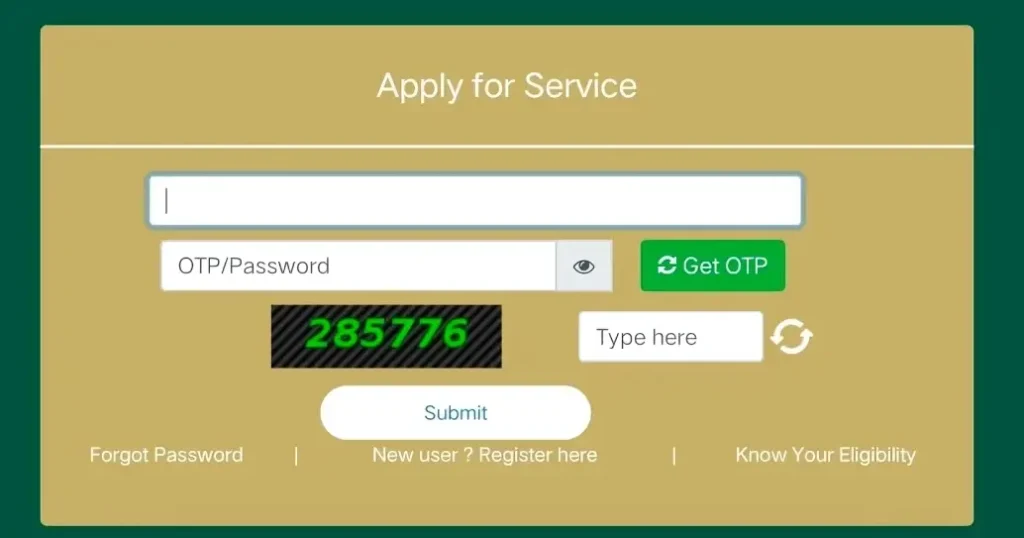
If your application shows Rejected, here is what you should do:
Read the reason for rejection
Fix the correct details or replace wrong documents
Submit a new application, as many rejected forms cannot be edited
If the problem keeps coming back, visit a Seva Sindhu, Karnataka One, or Grama One center for help
Tips to Avoid Errors Next Time
Keep your documents ready before starting the form
Use a stable internet connection
Upload clear, readable documents
Double-check all details such as name, address, and bank information
Apply during hours when the site is less busy You can also read: How to Apply for Multiple Government Services on Seva Sindh
When to Contact Support
Contact help or visit a center if:
FAQs
Final Thoughts
Correcting errors on the Seva Sindhu portal is simple once you know what to do. Whether it is a small typo or a rejected application, you can fix it by editing the form, reapplying, or getting help from a nearby service center. Double-check your details, upload the right documents, and apply during hours when the site is less busy. With these steps, your application is more likely to be accepted without any trouble.