Troubleshooting Seva Sindhu Portal Errors: A Simple Guide
The Seva Sindhu portal is an essential tool for accessing government services in Karnataka. However, like with any online platform, you may occasionally encounter errors. Don’t worry! Here’s a simple guide to help you troubleshoot and fix common issues on the Seva Sindhu portal.

Error: OTP Not Received
One of the most common issues users face is not receiving the One-Time Password (OTP) required for registration or login.
How to fix it:
Check Your Mobile Number: Ensure your mobile number is correctly linked to your Aadhaar.
Resend OTP: If you don’t get an OTP, click on the “Resend OTP” option and wait a few minutes.
Wait for Network Stability: Sometimes, network issues can cause delays in receiving the OTP. Make sure you have a stable internet connection and try again.
Try Another Number: If possible, use a different mobile number that’s linked to your Aadhaar.
Error: Application Form Not Submitting
Sometimes the application form on Seva Sindhu doesn’t submit or freezes at the final stage.
How to fix it:
Refresh Your Browser: Sometimes, just refreshing the page can fix the issue. Try clicking the “Refresh” button or press Ctrl + R on your keyboard.
Clear Cache and Cookies: Clear your browser’s cache and cookies to remove old data that could be causing the issue.
Try a Different Browser: Sometimes, issues can arise due to browser compatibility. Switch to a different browser (e.g., Chrome, Firefox, Edge) and try again.
Check File Size: If you’re uploading documents, ensure that the file size does not exceed the allowed limit.
Error: Login Issues
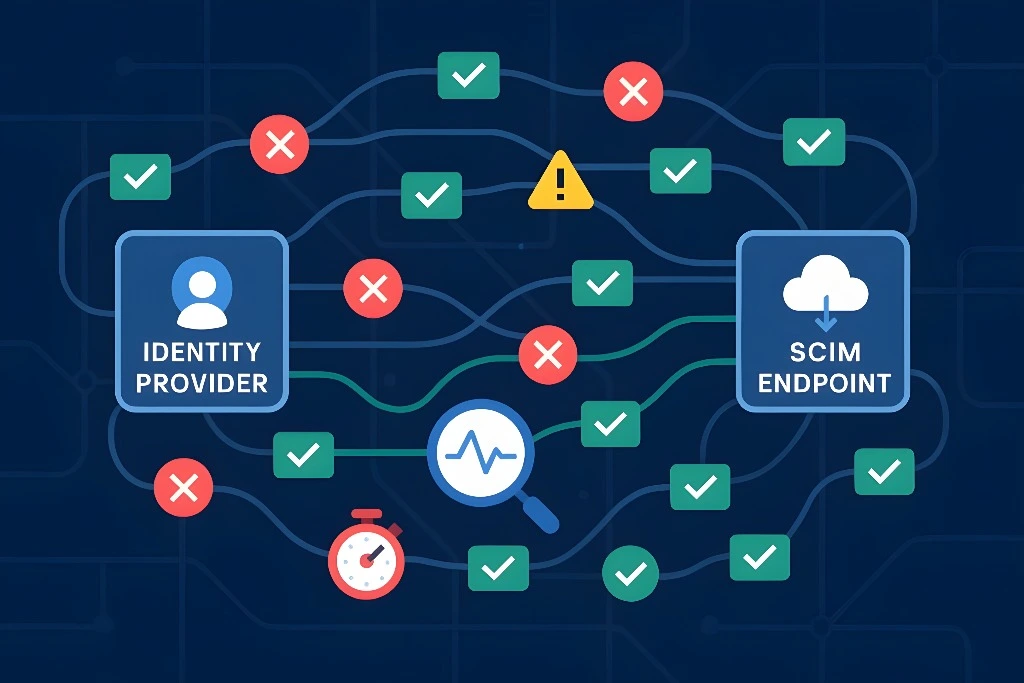
Many users experience login problems, where the portal shows errors like “Invalid Credentials” or “Account Not Found.”
How to fix it:
Check Your Credentials: Ensure you are entering the correct username (mobile number or Aadhaar) and password.
Forgot Password: If you’ve forgotten your password, use the “Forgot Password” option to reset it.
Check for Typos: Double-check that there are no accidental spaces or typos in your credentials.
Clear Browser Cache: Clear your browser cache and cookies, as this might resolve login issues.
Try Incognito Mode: Use your browser’s Incognito/Private Mode to log in without any stored cookies or cache interfering.
Error: Service Not Available
Sometimes, you might encounter an error saying that the service you are trying to access is not available at the moment.
How to fix it:
Error: Application Stuck in Processing
When your application status shows as “Processing” but doesn’t change, it can be frustrating.
How to fix it:
Error: Document Upload Issues
Another common issue is when documents fail to upload or are not accepted by the portal.
How to fix it:
Check File Format: Ensure that your documents are in the correct format (PDF, JPG, PNG, etc.) as specified by the portal.
Forgot Password: If you’ve forgotten your password, use the “Forgot Password” option to reset it.
Use Clear Scans: Make sure the scanned documents are clear and legible, as blurry images might not be accepted.
Error: Session Expired
Sometimes, you may get an error saying your session has expired when you’re working on the portal.
How to fix it:
Log In Again: Simply log back in to restart your session.
Don’t Leave the Page Idle: Avoid leaving the page idle for too long. If you’re not actively using it, try refreshing the page.
Clear Cache: Clear your browser cache and cookies to ensure no session-related issues.
Error: Mobile Number Already Registered
You may encounter an error stating that your mobile number is already registered, even though you’re trying to create a new account.
How to fix it:
Check Existing Account: If you’ve used the number before, try logging in with the same number to access your account.
Use a Different Number: If you’re unable to use the same number, consider registering with a different mobile number linked to your Aadhaar.
Contact Support: If you still face issues, contact Seva Sindhu customer support for assistance.
Why Having a Good Support Option Matters
Seva Sindhu covers many government services — certificates, welfare schemes, property/land records, subsidies, utility-related schemes, and more. Because each service involves different departments, there can be technical glitches, verification issues, or delays. A responsive customer support helps users solve problems and ensures the portal works for everyone.
Example Message to Use When Contacting Support
Subject: Issue with OTP during registration / Need help with application status
Message:
Hello, I’m [Your Name] from [District Name]. I tried registering on Seva Sindhu on [date and time], but I did not receive OTP on my Aadhaar-linked mobile number. My mobile number is [xxxxxxx]. Kindly help me activate my account / guide me further.
Thank you.
You can use this template for email or complaint form — it’s simple and gives support staff what they need to help you quickly.
FAQs
Final Thoughts
Seva Sindhu is a great platform for accessing government services, but like any online system, issues can sometimes arise. If you ever need help, don’t hesitate to contact Seva Sindhu customer support. With these easy steps and tips, you can quickly get the help you need, whether it’s by phone, email, or through a service centre. Stay patient, follow up if needed, and you’ll be on your way to getting your issues resolved in no time.
If you found this article helpful, feel free to share it with others who might need it. Good luck with your Seva Sindhu applications!